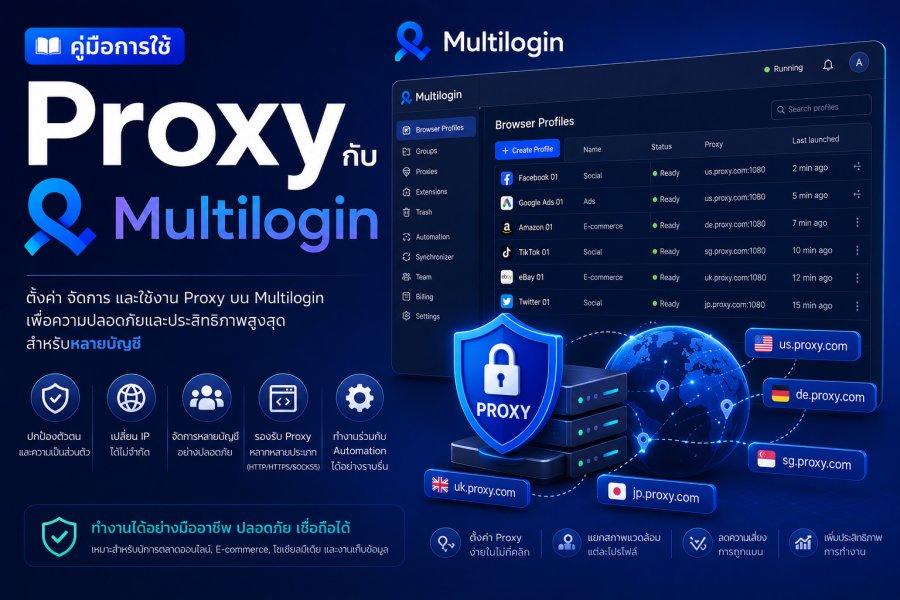
Multilogin คืออะไร?
Multilogin เป็น Anti-Detect Browser ชั้นนำที่ได้รับการยอมรับในระดับ Enterprise มาตั้งแต่ปี 2015 โดดเด่นด้วยเทคโนโลยี Browser Fingerprinting ที่ล้ำสมัยและความเสถียรสูง ถึงแม้ราคาจะสูงกว่าคู่แข่ง แต่ Multilogin ยังคงเป็นตัวเลือกอันดับต้นๆ สำหรับองค์กรขนาดใหญ่และ Professional Users
Multilogin มาพร้อมกับ 2 Browser Engines: Mimic (Chromium-based) และ Stealthfox (Firefox-based) ที่ช่วยให้คุณสามารถเลือกใช้ตามความต้องการ
ฟีเจอร์เด่นของ Multilogin
- 2 Browser Engines: Mimic (Chrome) และ Stealthfox (Firefox)
- Advanced Fingerprinting: เทคโนโลยี Fingerprinting ที่ดีที่สุด
- Team Collaboration: แชร์ Profiles และทำงานเป็นทีม
- Selenium/Puppeteer Support: รองรับ Automation
- Cloud Profiles: Sync Profiles ผ่าน Cloud
- API Access: Full API สำหรับ Integration
- Proxy Manager: จัดการ Proxy ได้ง่าย
- Quick Profiles: สร้าง Profiles ได้รวดเร็ว
การตั้งค่า Proxy บน Multilogin
ขั้นตอนที่ 1: ติดตั้งและเข้าสู่ระบบ
- ดาวน์โหลด Multilogin จาก https://multilogin.com
- ติดตั้งโปรแกรม (Windows, macOS, Linux)
- Login ด้วย Account ของคุณ
- Download Browser Cores:
- Mimic: สำหรับ Chromium-based
- Stealthfox: สำหรับ Firefox-based
ขั้นตอนที่ 2: สร้าง Browser Profile
- คลิก New Browser Profile
- เลือก Browser Type:
- Mimic: เหมาะสำหรับ Google Services, Social Media
- Stealthfox: เหมาะสำหรับ Banking, Crypto
- ตั้งชื่อ Profile
- เลือก Group (ถ้ามี)
ขั้นตอนที่ 3: ตั้งค่า Proxy (Quick Setup)
วิธีที่ 1: Manual Proxy Configuration
- ในหน้า Profile Settings ไปที่ Connection tab
- เลือก Connection Type:
- HTTP/HTTPS
- SOCKS5
- SSH
- กรอกข้อมูล Proxy:
Proxy address: 103.123.45.67 Port: 8080 Username: your_username (optional) Password: your_password (optional) - คลิก Check Proxy
- ตรวจสอบ:
- ✅ IP Address ถูกต้อง
- ✅ Country ถูกต้อง
- ✅ Response Time ต่ำ
วิธีที่ 2: Proxy Manager
- ไปที่ Proxy Manager (เมนูด้านซ้าย)
- คลิก Add Proxy
- เลือก Type:
- Single Proxy
- Rotating Proxy
- Residential Proxy
- กรอกข้อมูลและบันทึก
- กลับไปที่ Profile Settings
- เลือก Proxy จาก List
วิธีที่ 3: Import Proxy List
# สร้างไฟล์ CSV:
name,type,host,port,username,password
US Proxy 1,http,103.123.45.67,8080,user1,pass1
UK Proxy 1,socks5,103.123.45.68,1080,user2,pass2
TH Proxy 1,http,103.123.45.69,8080,user3,pass3

# Import:
1. Proxy Manager → Import
2. เลือกไฟล์ CSV
3. Multilogin จะ Import ทั้งหมด
ขั้นตอนที่ 4: Advanced Fingerprint Settings
1. Operating System
- Windows: 7, 8, 8.1, 10, 11
- macOS: 10.x, 11.x, 12.x, 13.x
- Linux: Ubuntu, Fedora
2. Screen Settings
Resolution: 1920x1080, 1366x768, 1440x900
Color Depth: 24-bit, 32-bit
Pixel Ratio: 1, 1.5, 2
3. Timezone
ตั้งค่า Timezone ให้ตรงกับ Proxy:
- US (EST): America/New_York
- UK: Europe/London
- Thailand: Asia/Bangkok
- Germany: Europe/Berlin
4. WebRTC
ป้องกัน IP Leak:
- Disabled: ปิดเลย (ปลอดภัยที่สุด)
- Real: ใช้ Real WebRTC
- Altered: ปลอม WebRTC
5. Canvas Fingerprinting
เลือกระดับการปลอม:
- Noise: เพิ่ม Noise เล็กน้อย
- Block: บล็อกการอ่าน Canvas
- Off: ปิด (ไม่แนะนำ)
ขั้นตอนที่ 5: เปิดใช้งาน Profile
- คลิก Save เพื่อบันทึก Profile
- คลิก Start เพื่อเปิด Browser
- Browser จะเปิดพร้อมการตั้งค่าทั้งหมด
การใช้งานขั้นสูง
1. Quick Profiles
สร้าง Profiles แบบรวดเร็ว:
- คลิก Quick Profile
- เลือกจำนวน Profiles ที่ต้องการสร้าง
- อัปโหลด Proxy List (1 Proxy = 1 Profile)
- Multilogin จะสร้าง Profiles พร้อม Fingerprints อัตโนมัติ
2. Team Collaboration
การแชร์ Profiles:
- คลิกขวาที่ Profile
- เลือก Share
- เพิ่ม Team Member Email
- เลือก Permission Level:
- Admin: สิทธิ์เต็ม
- User: ใช้งานอย่างเดียว
- Viewer: ดูอย่างเดียว
Groups Management:
- สร้าง Groups เพื่อจัดระเบียบ Profiles
- กำหนดสิทธิ์แบบกลุ่ม
- แชร์ทั้งกลุ่มพร้อมกัน
3. Automation with Selenium
from selenium import webdriver
from selenium.webdriver.chrome.options import Options

# Multilogin API
MLX_API = "http://localhost:35000/api/v1"
profile_id = "your-profile-id"

# Start Profile
import requests
response = requests.get(f"{MLX_API}/profile/start?profile_id={profile_id}")
selenium_port = response.json()['status']['message']

# Connect Selenium
options = Options()
options.debugger_address = selenium_port

driver = webdriver.Chrome(options=options)
driver.get("https://example.com")

# Your automation code
# ...

# Stop Profile
requests.get(f"{MLX_API}/profile/stop?profile_id={profile_id}")
driver.quit()
4. Puppeteer Integration
const puppeteer = require('puppeteer-core');
const axios = require('axios');

const MLX_API = 'http://localhost:35000/api/v1';
const profileId = 'your-profile-id';

async function startProfile() {
  // Start Profile
  const response = await axios.get(`${MLX_API}/profile/start`, {
    params: { profile_id: profileId }
  });

  const wsEndpoint = response.data.status.message;

  // Connect Puppeteer
  const browser = await puppeteer.connect({
    browserWSEndpoint: wsEndpoint
  });

  const page = await browser.newPage();
  await page.goto('https://example.com');

  // Your automation code
  // ...

  await browser.close();

  // Stop Profile
  await axios.get(`${MLX_API}/profile/stop`, {
    params: { profile_id: profileId }
  });
}

startProfile();
Best Practices
1. เลือก Browser Engine ที่เหมาะสม
| Use Case | Browser | เหตุผล |
|---|---|---|
| Social Media | Mimic | Chrome-based ทำงานดีกับ FB/IG |
| Banking/Finance | Stealthfox | Security สูงกว่า |
| E-commerce | Mimic | รองรับ Extensions เยอะ |
| Crypto Trading | Stealthfox | ความเป็นส่วนตัวสูง |
2. Proxy Rotation Strategy
Static Proxy (แนะนำ):
- ใช้ Proxy เดิมสำหรับแต่ละ Profile
- สร้างความน่าเชื่อถือ
- ลดโอกาสถูกตรวจจับ
Rotating Proxy:
- เหมาะสำหรับ Web Scraping
- หมุนเวียน IP ทุก X นาที
- ไม่เหมาะสำหรับ Social Media
3. Profile Organization
📁 Facebook Accounts
  ├── 🇺🇸 US Accounts (10 profiles)
  ├── 🇬🇧 UK Accounts (15 profiles)
  └── 🇹🇭 TH Accounts (5 profiles)

📁 Amazon Seller Accounts
  ├── Account 1 (US)
  ├── Account 2 (UK)
  └── Account 3 (DE)

📁 Testing Profiles
  └── Dev/QA Profiles
4. Cookie & Session Management
- Keep Cookies: บันทึก Cookies สำหรับแต่ละ Profile
- Clear on Close: ล้าง Cookies เมื่อปิด Browser
- Export/Import: Backup Cookies สำคัญ
การแก้ปัญหาที่พบบ่อย
1. Proxy Connection Failed
วิธีแก้:
- Test Proxy ด้วย Check Proxy
- ตรวจสอบ Firewall Settings
- ลองเปลี่ยน Protocol (HTTP → SOCKS5)
- ติดต่อ Proxy Provider
2. Browser Won't Start
วิธีแก้:
- Clear Browser Cache: Settings → Clear Data
- Re-download Browser Core
- Check System Requirements
- Restart Multilogin App
3. Fingerprint Detected
วิธีแก้:
- ใช้ Real Device Fingerprints
- ปรับ Canvas/WebGL Settings
- เปลี่ยนเป็น Residential Proxy
- Update Multilogin เป็นเวอร์ชันล่าสุด
4. Slow Performance
วิธีแก้:
- ใช้ Proxy ที่เร็วกว่า
- ลดจำนวน Profiles ที่เปิดพร้อมกัน
- Allocate More RAM: Settings → Performance
- ปิด Extensions ที่ไม่ใช้
Pricing และแพ็คเกจ
| Plan | Profiles | Team Members | ราคา/เดือน |
|---|---|---|---|
| Solo | 100 | 1 | €99 |
| Team | 300 | 3 | €199 |
| Scale | 1000 | 7 | €399 |
| Custom | Unlimited | Unlimited | Contact Sales |
💰 หมายเหตุ: ราคาค่อนข้างสูง แต่คุ้มค่าสำหรับ Enterprise
Multilogin vs Competitors
| Feature | Multilogin | GoLogin | AdsPower |
|---|---|---|---|
| Browser Engines | 2 (Mimic, Stealthfox) | 1 (Chromium) | 2 (Sun, Flower) |
| Fingerprint Quality | ⭐⭐⭐⭐⭐ | ⭐⭐⭐⭐ | ⭐⭐⭐⭐ |
| API | Full API | Basic API | Full API |
| ราคา | €99+ | $24+ | $9+ |
| Support | ⭐⭐⭐⭐⭐ | ⭐⭐⭐⭐ | ⭐⭐⭐ |
Use Cases
1. Affiliate Marketing
- จัดการหลาย Affiliate Networks
- ทดสอบ Campaigns จากหลาย GEOs
- Spy Tools Integration
2. E-commerce Arbitrage
- Multiple Amazon Seller Accounts
- Dropshipping Accounts
- Product Research
3. Ad Agency
- Client Account Management
- Ad Testing จากหลายประเทศ
- Campaign Optimization
สรุป
Multilogin เป็น Anti-Detect Browser ระดับ Professional ที่เหมาะสำหรับผู้ที่ต้องการคุณภาพสูงสุด แม้ราคาจะสูง แต่ได้คุณภาพและความเสถียรที่คุ้มค่า
ข้อดี:
- ✅ Fingerprinting ที่ดีที่สุด
- ✅ 2 Browser Engines
- ✅ API Integration ครบครัน
- ✅ Enterprise-grade Security
- ✅ Support 24/7
ข้อเสีย:
- ❌ ราคาสูง
- ❌ ไม่มี Mobile App
- ❌ Learning Curve สูงกว่า
หากคุณกำลังมองหา Proxy สำหรับใช้กับ Multilogin เราแนะนำ Residential Proxies หรือ ISP Proxies สำหรับผลลัพธ์ที่ดีที่สุด ดูแพ็คเกจที่นี่ หรือ ติดต่อขอ Enterprise Quote


แสดงความคิดเห็น
ความคิดเห็น (0)
ยังไม่มีความคิดเห็น — เป็นคนแรกที่แสดงความคิดเห็น